Thursday, 30 July 2009

People Search Results adds a :80 Suffix to results on an External Facing Site

Had an issue where doing a People Search by connecting to my external facing SharePoint site via ISA Server 2006 on say https://extranet.domain.com was returning People search results suffixed with a ":80" so for example People Search results done externally for a particular person would return something like:

https://mysite.domain.com:80/person.aspx?guid=08AE56E0-EA14 etc which does not resolve externally

Internally everything is fine so browsing to http://intranet and performing a People Search returns the correct URL for a person as http://mysite/person.aspx?guid=08AE56 etc which is correct

AAM Settings are:

Intranet Web Application

Default Zone: http://intranet

Extranet Zone: https://extranet.domain.com

MySite Web Application

Default Zone: http://mysite

Extranet Zone: https://mysite.domain.com

This could be caused by using the same web application for both port 80 and 443 access and tests showed that this was not caused by ISA 2006 but I managed to resolve this on the external side by adding a Link Translation mapping in my ISA Server Extranet publishing rule that maps https://mysite.domain.com:80 to https://mysite.domain.com

This works fine but in environments where ISA is not used it may be prudent to extend the Web App so that you have a dedicated SSL web application which may solve the issue (haven't tested this but a colleague has this scenario and doesn't have the problem.

Alternatively, I also found the following article which resolves the issue by editing the People Search Core Results Web Part and the Search High Confidence Results Web Part.

http://blogs.technet.com/victorbutuza/archive/2008/10/20/how-to-remove-something-the-port-from-the-url-as-returned-in-the-search-results-searchresults-aspx.aspx

Monday, 27 July 2009

NLB IP Address does not appear in IIS on Windows 2008

Had an interesting issue as follows - I configured Windows Network Load Balancing (NLB) on my 2 SharePoint 2007 Web Front End Servers on Windows Server 2008 SP2 64Bit and then proceeded to assign IP addresses to my Main Portal Web Application and the MySite Web Application (both web apps are on port 80 so using IP addresses to distinguish them apart rather than host headers). The weird thing is that unlike Windows 2003 NLB in Windows 2008 your load balanced Virtual IP does not appear in the list of IP addresses you can bind to the web application. Looking around on various forums it seems that this is some kind of a bug on Server 2008. A workaround for now which I used is to manually type in the Load balanced IP address in IIS when selecting from a list of IP addresses to bind to the web application.

As you can see in the example below the 172.16.0.50 is my load balanced address but does not appear in the list of IP Addresses in the drop down list so I have typed it in manually and this works:

NLB IP

Thursday, 25 June 2009

Access Denied messages when performing an Index Crawl and Event 2436 Warnings

Had an issue recently where I could not Crawl a SharePoint site after setting off a full crawl of my default content source and was receiving the following message "Access is denied. Check that the Default Content Access Account has access to this content, or add a crawl rule to crawl this content."

I was also getting Warnings with Event ID 2436 stating that Access was Denied.

I discovered that this was down to the Loopback problem described in KB896861 http://support.microsoft.com/kb/896861 and was caused by the site URL not having the NetBIOS name of my SharePoint server, e.g. my server was called MOSS01 but I was trying to crawl my site collection at http://portal.domain.com

I followed the instructions for "Method 1" in the article which are as follows:

To specify the host names that are mapped to the loopback address and can connect to Web sites on your computer, follow these steps:

  1. Click Start, click Run, type regedit, and then click OK.
  2. In Registry Editor, locate and then click the following registry key:
    HKEY_LOCAL_MACHINE\SYSTEM\CurrentControlSet\Control\Lsa\MSV1_0
  3. Right-click MSV1_0, point to New, and then click Multi-String Value.
  4. Type BackConnectionHostNames, and then press ENTER.
  5. Right-click BackConnectionHostNames, and then click Modify.
  6. In the Value data box, type the host name or the host names for the sites that are on the local computer, and then click OK.
  7. Quit Registry Editor, and then restart the IISAdmin service.

I started another full crawl after an IISRESET but still received the same errors. I eventually resolved it by resetting all crawled content from the SSP Administration pages as follows:

SSP > Search Administration > Reset all crawled content

This allowed me to perform a full crawl without any errors.

Monday, 15 June 2009

Uninstall Issues with MOSS 2007, WSS Tracing Service Stuck in "Stopping" state

Had a scenario where I needed to uninstall SharePoint 2007 from a server (single MOSS server holding all roles, separate SQL server) as the customers application of SP2 had been unsuccessful so they were getting search service and SSP errors. Also the Search Administration option was not appearing in the SSP (which is part of the Infrastructure updates and should also appear when SP2 is applied). I recreated the SSP and Search Administration appeared but I was still getting lots of Search and SSP errors. In the end I didn’t trust the implementation anymore and decided to reinstall SharePoint cleanly.

Uninstalling SharePoint was unsuccessful as the WSS Tracing service could not be stopped and was stuck in a “Stopping” state. I had no choice but to cancel uninstall and was prompted to reboot the server. Rebooting the server and trying to uninstall again prompted a message saying “Product Installer could not be found..” I could see that the SharePoint services such as WSS Timer, Office SharePoint Search etc were still present in the services console (in a disabled state). So I now had a semi-uninstalled SharePoint server.

There are many articles on how to uninstall SharePoint manually which involve removing registry keys etc but in the end I resolved the uninstall issue by installing MOSS with SP1, it allowed me to do this even though it had not cleanly uninstalled the previous MOSS version on the server. After installing I cancelled the running of the SharePoint Config Wizard and went to add/remove programs and uninstalled the MOSS with SP1 I had just put on. This allowed a clean uninstall of SharePoint. This then allowed me to install MOSS on a "clean" server.

Wednesday, 3 June 2009

Restoring a Site Collection based on the Publishing Portal template loses logo and Top Nav Bar Colour

I created a vanilla site collection using the Publishing Portal template. Backed it up using stsadm –o backup command line then restored it over the same site collection using the stsadm –o restore command line. This resulted in the site Master Page changing appearance as follows:

Before (Vanilla newly created):

Before

After (backed up and restored over vanilla):

After

As you can see the Top Navigation bar is white and the logo in the top left has disappeared.

I managed to resolve this by opening the Master Page in SharePoint Designer, not checking it our, altering it or saving it, JUST opening it. This fixed the issue. I am running MOSS 2007 SP2. I tried this on another SP2 system and got the same results.

Very strange that just looking at the Master Page in SPD 2007 fixes this.

Friday, 15 May 2009

Remote File Share Access Via SharePoint

I have been looking at a number of remote file access solutions for a customer which allow users to access files located on a file share via a web part in SharePoint both internally and externally. Remote file access via SharePoint is also required to users home directories.

I am currently looking at two Solutions, the first one is a licensed set of two web parts - My Shared Documents & My Documents from http://www.salamandersoft.co.uk/ . I started with the My Shared Documents web part which allows users access to a shared folder on a file server. This is fairly easy to set up once you deploy the soluution as you edit an XML file with the UNC path of the file shares you want to make available and add it to the root of you SharePoint front ends. You can then drop the web part to any site. The web part also allows you to configure whether users can write back to the share or if it is read only.

The My Documents web part is even easier to configure as it picks up the users home directory settings from AD so there is no configuration of the XML file required. The My Shared Documents web part is shown below:


Notice that the context menu is very MOSS even though all the folders shown are on a file share on another server.


I also found a free web part from http://www.hezser.de/blog/archive/2008/03/30/access-fileserver-data-via-sharepoint.aspx that does the same thing but this one is security trimmed so you can point it to a share and it will only show folders and files you have access to. I have not had a chance to fully test this web part and will post an update once I have. I have found that the configuration options compared to the SalamanderSoft solution are very limited. Meanwhile, here is a screenshot:


As you can see this has a nice tree view.

Monday, 16 March 2009

MOSS February 2009 Cumulative Updates Break 64bit Adobe iFilter v9

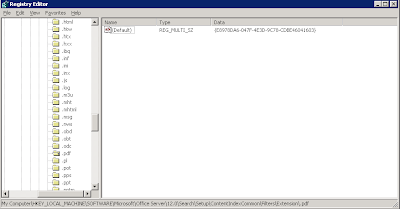
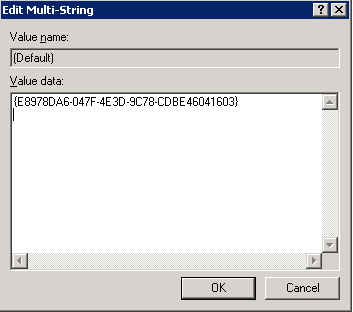
After updating a customers MOSS farm with the February 2009 Cumulative Updates and performing a full crawl of my default content source I found that PDF files were no longer being indexed. I discovered that the updates had overwritten a registry key that the Adobe iFilter 64bit deployment guide asks you to change and therefore had changed it back to the default key.

To fix this issue perform the following on your Index Server:
Run Regedit by browsing to c:\Windows\system32\regedt32.exe and double-clicking it.


  • While still in RegEdit, within the left-side tree, browse to: \\HKEY_LOCAL_MACHINE\SOFTWARE\Microsoft\Office Server\12.0\Search\Setup\ContentIndexCommon\Filters\Extension\.pdf

  • Ensure that the values match the following as shown.
    Default = {E8978DA6-047F-4E3D-9C78-CDBE46041603}